Category: JuvoPOS

  • Caller ID – Whozz Calling

    Caller ID – Whozz Calling

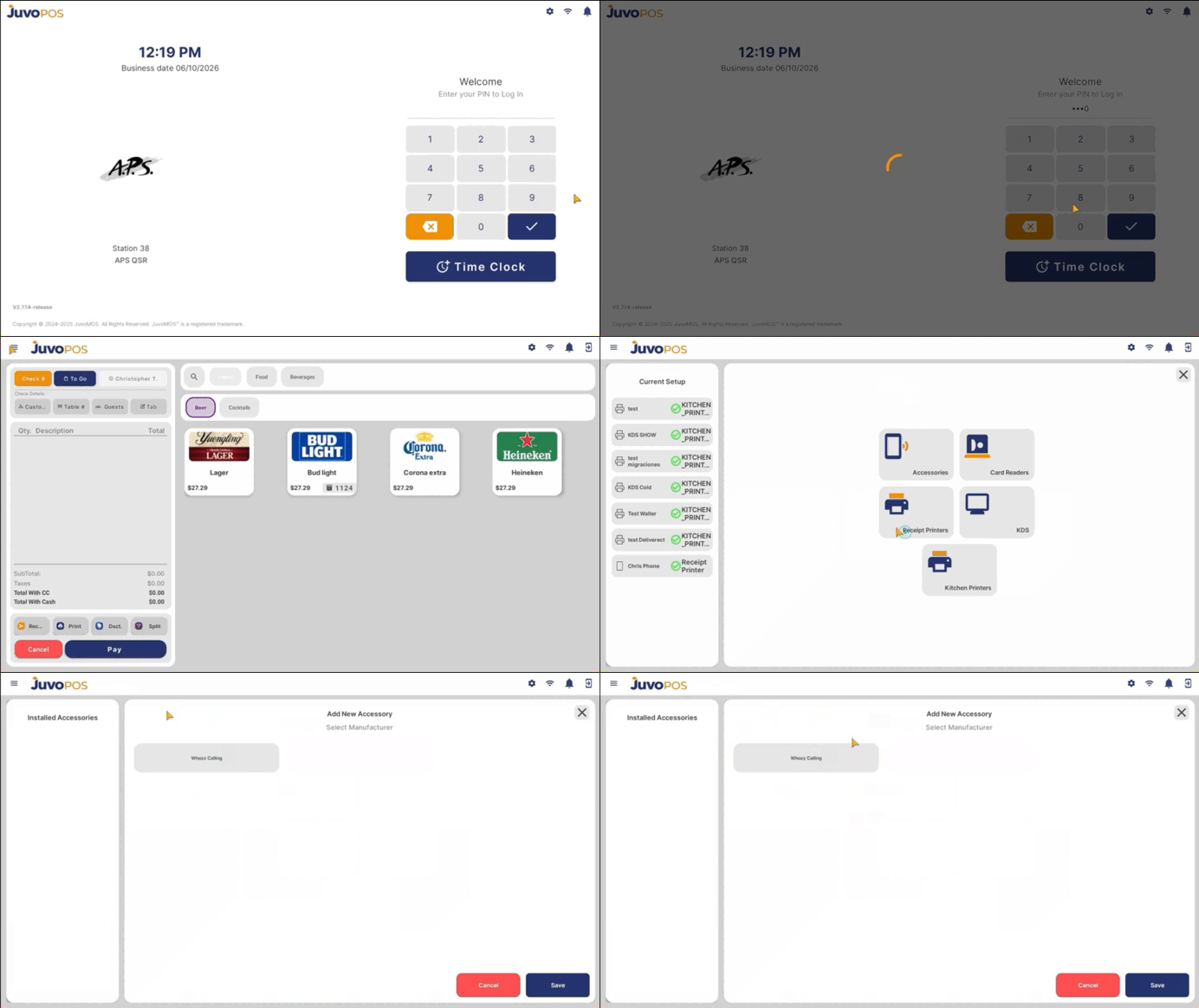
    To configure and use Caller ID:

    Go to Settings.
    Select Accessories.
    Select Caller ID.
    Select Whozz Calling.
    In the Customer section, the available Caller ID lines will be
    displayed, for example, Line 8.
    Select the appropriate caller and add it.
    If the phone number already exists in the system, the corresponding Customer profile will open automatically.

    If the phone number does not exist, the system will allow you to begin the Create Customer process to add the new customer.
  • New Notification Inbox

    New Notification Inbox

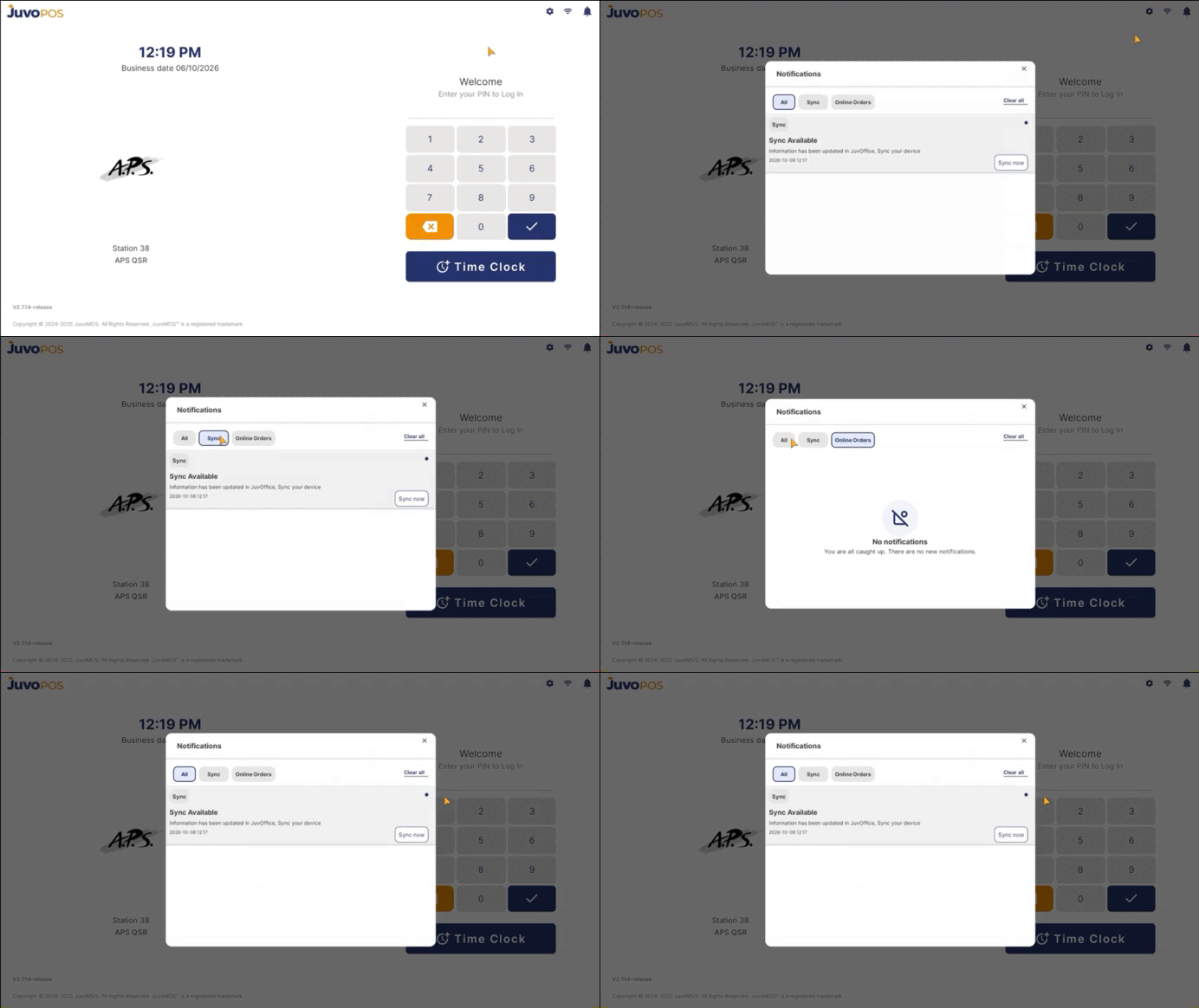
    A new notification inbox has been added to JuvoPOS. This section will display different notifications related to the POS, including:

    New Versions: Notifications regarding new POS versions and updates.
    OLO: Notifications related to OLO.
    Sync: Notifications related to synchronization processes. These
    notifications have priority.
    Online Orders: Notifications related to online orders.

    The notification inbox also includes a filter that allows users to
    filter notifications by type.

    Additional options include:

    Clear All: This option can be used to clear all notifications when
    necessary.
    Online Orders: Clicking on an online order will automatically open the corresponding check directly in the Checks section.